



Managed Object Browser: Powerful Secrets Revealed
The Managed Object Browser is one of the most useful but least understood tools in the VMware ecosystem. While many administrators rely on the vSphere Client for day-to-day work, there are times when the interface does not show enough detail. In those moments, the Managed Object Browser, often called MOB, becomes valuable. It gives direct visibility into the objects, properties, and methods that power a VMware environment behind the scenes.
For anyone working with vSphere, ESXi, vCenter Server, or Virtual Machines, this tool can reveal how the platform actually organizes its Inventory. It can also help with troubleshooting, API learning, and object discovery. At the same time, it should be used carefully, because unrestricted access can expose sensitive information or allow risky actions.
This guide explains what the Managed Object Browser is, how it works, what it can show, when it is useful, and why many teams eventually choose to disable managed object browser access in production.
What Is a Managed Object Browser?
A Managed Object Browser is a web-based tool that exposes managed objects inside a platform. In VMware, the vmware managed object browser provides a direct view into the object model that supports the vSphere API.
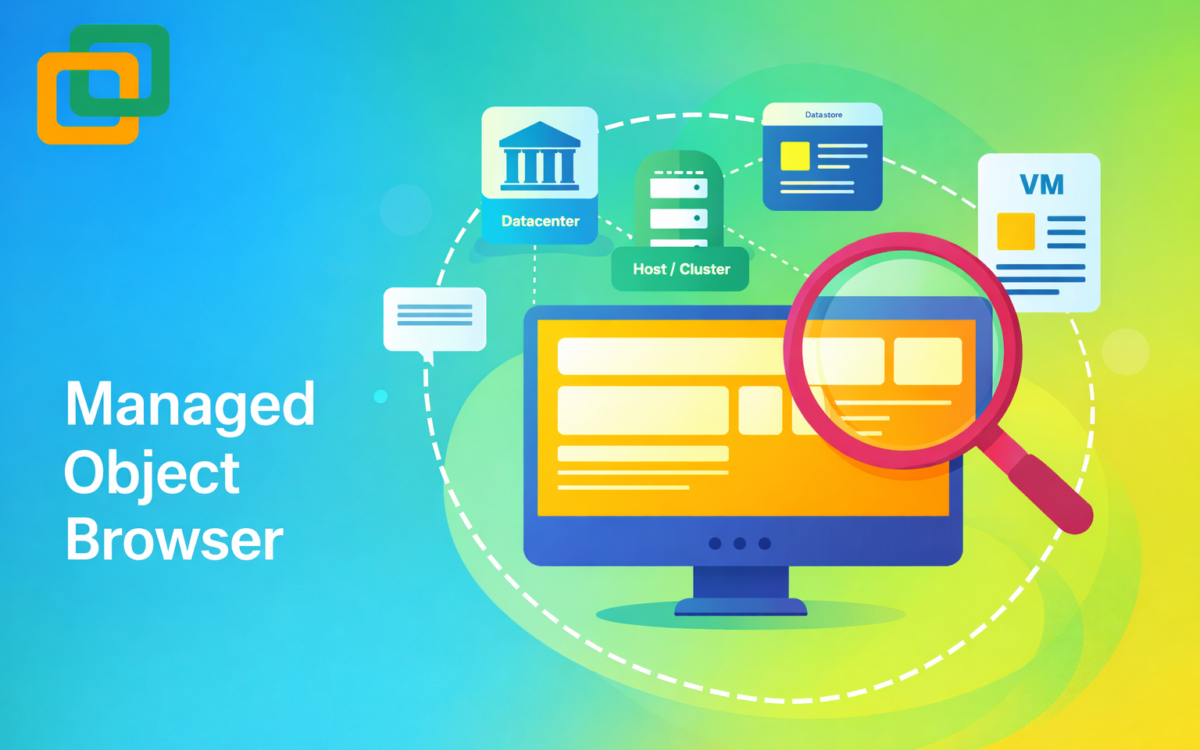
Instead of only showing a polished visual interface, it displays the actual structure of the environment. That includes objects like a Datacenter, Host, Cluster, Datastore, Network, and Virtual Machines. It also shows their linked Properties, available Methods, and how those objects relate to each other.
In simple terms, it is a way to inspect the real backend structure of a VMware environment.
Why VMware Uses Managed Objects
VMware organizes infrastructure using managed objects because they create a consistent model for administration, automation, and development. Every major component in vSphere is represented as an object with data and actions attached to it.
That means a user is not just looking at icons in a dashboard. They are looking at structured entities that the platform tracks programmatically.
Common VMware Objects Seen in MOB
Inside the Managed Object Browser, users may encounter:
- Datacenter
- Host
- Cluster
- Datastore
- Network
- Virtual Hardware
- Virtual Machines
- vCenter Server
- Resource pools
- Folders
- Service objects
These objects make up the foundation of the VMware environment
Properties and Methods Explained
The easiest way to understand the Managed Object Browser is to break it into two parts: Properties and Methods.
| Component | What It Means | Example |
| Properties | Information about an object | VM name, power state, CPU count |
| Methods | Actions available on an object | Power on, snapshot, reconfigure |
| Object Type | The class of managed objects | VirtualMachine, HostSystem, Datastore |
| Relationships | How objects connect | VM on a host, host inside a cluster |
This structure matters because it reflects how the SDK and API see the platform. For researchers, automation engineers, and administrators, the MOB is a practical way to understand the system model without guessing.
How the VMware Managed Object Browser Works
The VMware managed object browser usually begins at the service layer and lets the user move through linked objects in a hierarchy.
A typical path looks like this:
- Service instance
- Content
- Root folder
- Datacenter
- Host or VM folder
- Specific Host, Cluster, or Virtual Machine
This navigation is useful because it reveals Object Relationships that may not be obvious in the regular interface.
For example, a user can move from a virtual machine to the host running it, then inspect the cluster that contains that host, and finally look at the datastore or network backing the workload.
What the Managed Object Browser Can Show
The Managed Object Browser can reveal far more than many users expect.
Depending on access level and product version, it may show:
- VM configuration
- Storage relationships
- Guest details
- Network connections
- Runtime state
- Hardware assignments
- Cluster membership
- Datastore mapping
- Linked object references
- API-visible values
This is one reason the tool is often used when the standard interface seems incomplete or delayed.
A Look at Virtual Hardware
One particularly useful area is Virtual Hardware.
When a user opens the right object, the browser may expose details such as:
- vCPU assignments
- Memory size
- Virtual disks
- Controllers
- NICs
- Device backing data
That makes it easier to understand how a virtual machine is configured at the object level.
Why the Managed Object Browser Matters
The Managed Object Browser matters because it gives direct truth from the platform model. The standard UI is designed for convenience. MOB is designed for visibility.
Key benefits include:
- Better understanding of VMware object structure
- Easier API and SDK learning
- Faster troubleshooting of hidden details
- Clearer view of inventory relationships
- Support for automation research
- Confirmation of real platform values
For students and researchers, it is educational.
For administrators, it is practical.
For technical teams, it often becomes the fastest way to understand what vSphere is actually reporting.
Common Use Cases for MOB
The Managed Object Browser is not always used every day, but it becomes especially valuable in situations where deeper inspection is needed.
Typical use cases include:
- Understanding the structure of the Inventory
- Verifying object values for scripts
- Exploring Object Relationships
- Reviewing virtual machine configuration
- Studying the VMware API
- Learning the vSphere SDK
- Checking cluster and host relationships
- Troubleshooting odd behavior in the UI
This is why many advanced VMware users consider MOB a learning tool and a diagnostic tool at the same time.
Managed Object Browser and Security
Even though MOB is powerful, it is not always something a team should leave openly available.
Because it can reveal detailed internal information and sometimes expose callable methods, many organizations treat it as something that should be restricted when not needed.
Why Teams Disable MOB
Teams often choose to disable managed object browser access for one main reason: security hardening.
The most common reasons include:
- Reducing unnecessary exposure
- Limiting object discovery by unauthorized users
- Preventing unsafe manual method use
- Hardening vCenter Server and host systems
- Aligning with internal security policy
That is why related searches such as “disable VMware managed object browser” and “disable managed object browser vcenter” are so common.
How to Disable Managed Object Browser
The exact method depends on the VMware product and version. Some environments only need to lock it down at the management layer, while others also review host-level exposure.
Disable Managed Object Browser vCenter
When people search for a disabled managed object browser vCenter, they are usually trying to secure the central management point of the VMware environment.
In practice, this normally means:
- Reviewing advanced settings in vCenter
- Checking whether the MOB endpoint is enabled
- Applying the version-appropriate restriction method
- Testing access after the change
- Documenting the hardening step
Because interface paths and settings can vary by version, teams should always verify the right process for their release.
Disable VMware Managed Object Browser on ESXi
Some teams also want to disable vmware managed object browser access on individual hosts, especially in hardened or regulated environments.
Before doing that, it is smart to:
- Confirm MOB is no longer needed for diagnostics
- Record the current configuration
- Follow product-specific guidance
- Test the outcome after changes
- Keep a rollback note for future admins
Disable Managed Object Browser 6
Searches like disable managed object browser 6 still appear because many organizations maintain older environments or refer to legacy documentation.
In older VMware setups, the disable process may differ from newer builds. That means administrators should avoid assuming that a modern vCenter method applies directly to an older release.
When It Makes Sense to Keep MOB Enabled
Disabling the tool is not always the best move.
There are environments where keeping it available is reasonable, especially when access is controlled.
MOB may stay enabled in:
- Lab environments
- Training environments
- API development setups
- Integration testing systems
- Temporary troubleshooting windows
In these cases, proper permissions and careful change control matter more than convenience.
Managed Object Browser for Troubleshooting
Troubleshooting is one of the strongest reasons to use MOB.
When the normal client gives an incomplete answer, raw object visibility often helps reveal what is really happening.
How MOB Helps During Troubleshooting
MOB can help users trace:
- Which host is a VM running on
- Which Datastore is backing a disk
- Which Network object is attached
- Which Cluster contains the host
- Which property reflects the actual runtime state
This makes the tool useful when investigating configuration mismatches, slow inventory updates, or inconsistent object status.
Understanding Object Relationships in vSphere
One of the biggest strengths of the Managed Object Browser is its ability to show Object Relationships clearly.
A VMware environment is not just a collection of separate components. Everything is linked.
For example:
- A VM belongs to a folder or inventory container
- That VM runs on a host
- That host belongs to a cluster
- That cluster belongs to a datacenter
- The VM also depends on storage and network objects
Seeing those links helps users understand how the environment is modeled at the platform level.
ACI Managed Object Browser vs VMware MOB
The idea of a managed object browser is not unique to VMware.
The term ACI managed object browser is often associated with Cisco ACI, where administrators inspect managed objects inside the fabric model. The concept is similar even though the environment is different.
What both approaches have in common:
- They expose structured objects
- They reveal relationships between components
- They support troubleshooting
- They help users understand platform logic
- They are useful for technical learning and automation work
The difference is that VMware MOB is focused on virtualization objects inside vSphere, ESXi, and vCenter Server.
Best Managed Object Browser for Conversational AI
The phrase best managed object browser for conversational ai is broader than classic VMware administration, but it can still be discussed in a generic and useful way.
A managed object browser that works well for conversational AI would usually have:
- Clear object naming
- Predictable structure
- Rich property visibility
- Strong API support
- Good access control
- Easy integration with structured data workflows
By those standards, VMware MOB has strengths because it exposes a clean object model. It was not built as an AI-first interface, but it can still serve as a structured source of technical data for future AI-assisted operational workflows.
Can MOB Help With Cluster Discovery Problems?
A related troubleshooting search is failover cluster manager unable to browse for cluster objects.
That issue is often tied to Windows cluster discovery, permissions, or name resolution. Still, in virtualized environments, MOB may help indirectly by confirming whether the VMware-side Cluster object and related compute details are visible and healthy.
It does not replace Microsoft-side troubleshooting, but it can help separate virtualization-layer questions from operating-system-layer issues.
Managed Object Browser and API Learning
For many users, the Managed Object Browser is one of the best ways to learn how VMware really works.
Documentation explains the theory.
The API defines the structure.
The SDK provides the tooling.
The MOB shows the model in practice.
That combination makes it especially useful for:
- Students learning virtualization
- DevOps teams building integrations
- Researchers exploring infrastructure models
- Administrators learning automation concepts

Best Practices for Using MOB Safely
The tool is useful, but it should be handled with discipline.
Recommended best practices:
- Use it only with proper permissions
- Prefer read-only exploration when learning
- Avoid invoking methods unless the impact is clear
- Restrict access in production
- Document configuration changes
- Use version-specific guidance before disabling or changing access
- Treat it as an expert visibility tool, not a shortcut for routine admin work
These practices help preserve the browser’s value without increasing unnecessary risk.
Who Should Learn the Managed Object Browser?
The Managed Object Browser is not only for senior engineers.
It can help:
- Students learning VMware basics
- Infrastructure admins handling diagnostics
- Technical writers documenting VMware behavior
- Support engineers checking object visibility
- DevOps teams learning platform APIs
- Architects studying object structure and dependencies
Anyone who wants a clearer understanding of how VMware models infrastructure can benefit from learning MOB.
Conclusion
The Managed Object Browser remains one of the most practical tools for understanding how VMware works beneath the standard interface. It gives direct visibility into Inventory, Properties, Methods, and Object Relationships across vSphere, ESXi, vCenter Server, Host, Cluster, Datastore, Network, and Virtual Machines.
It is useful for learning, troubleshooting, and technical research. At the same time, it should be used carefully. In many production environments, teams eventually decide to disable managed object browser access once they no longer need it for diagnostics or development.
For anyone trying to understand the real structure of a VMware environment, the Managed Object Browser is still worth learning. Used wisely, it turns a hidden backend model into something visible, logical, and useful
FAQ
Is the Managed Object Browser only for VMware?
No. VMware is the most common example here, but the idea also appears in other platforms, such as the aci managed object browser used in Cisco ACI.
Why do admins search for the disabled managed object browser in vCenter?
Because vCenter is a central management layer, restricting unnecessary access there can improve the overall security posture.
Is disable managed object browser 6 still a relevant search?
Yes. Many teams still reference older environments, legacy documentation, or version-specific hardening steps.
Can the VMware managed object browser help with troubleshooting?
Yes. It can help reveal object data, runtime state, storage links, and inventory relationships that may not be obvious in the standard interface.
Is VMware the best managed object browser for conversational AI?
Not by original design, but it is a useful structured data source. That makes it relevant in broader discussions around the best managed object browser for conversational ai.
Can MOB solve the failover cluster manager unable to browse for cluster objects?
Not directly. That issue usually needs separate Windows-side troubleshooting, but MOB can help confirm whether VMware-side cluster objects are present and visible