



How to Use Puter.ai Chat in JavaScript Apps Fast 2026 Guide
The landscape of web development has shifted. In 2026, a “standard” web application is no longer just a collection of buttons and forms; it is an intelligent ecosystem. If you aren’t integrating artificial intelligence into your workflow, you’re essentially coding with one hand tied behind your back.
However, for many developers, the barrier to entry remains high, managing complex backend code, handling API keys, and worrying about skyrocketing API usage costs.
Enter Puter.ai. It isn’t just another AI provider; it is an open-source cloud operating system that lives in your browser. By using the Puter.js SDK, you can transform a static web application into a dynamic, AI-powered powerhouse in minutes.
This article will provide a deep dive into how to use Puter.ai chat in your JavaScript apps fast, ensuring your user experience is top-tier while keeping your development process lean
Understanding the Puter.ai Ecosystem
Before we dive into the frontend code, we need to understand what makes Puter unique. Unlike traditional providers, where you must set up a Node.js server just to hide an API key, Puter allows for secure client-side interactions.
The Power of Puter.js
Puter.js is the bridge between your JavaScript code and a world of AI models. It handles the heavy lifting of authentication, session management, and asynchronous requests automatically. This means you can focus on the User Interface (UI) and Logic rather than the plumbing of HTTP requests.
The User-Pays Model: A Game Changer
One of the most significant pain points for developers is the cost of API credits. Traditionally, if your app goes viral, your bill explodes.
Puter introduces a User-Pays Model. This allows your users to bring their own API credits or use the Unlimited OpenAI API access provided within the Puter ecosystem. This shifts the financial burden away from the developer, making it easier to scale open-source projects without a massive budget
Setting Up Your Environment
To build a high-performing AI chatbot, you need the right tools. Whether you prefer a simple script src tag or a modern npm install workflow, Puter has you covered.
1. The Quick Start (CDN Method)
If you are building a simple prototype or want to test a feature in the Playground, you can include Puter directly in your HTML:
HTML
<script src=”https://js.puter.com/v2/”></script>
This script tag initializes the global puter object, giving you instant API access.
2. The Professional Setup (NPM Method)
For production-grade web applications built with React, Vue.js, or Angular, you’ll want to manage your dependencies properly.
Bash
npm install @puter/sdk
Once installed, you can initialize it in your main JavaScript file:
JavaScript
import puter from ‘@puter/sdk’;
Building the Chat Interface
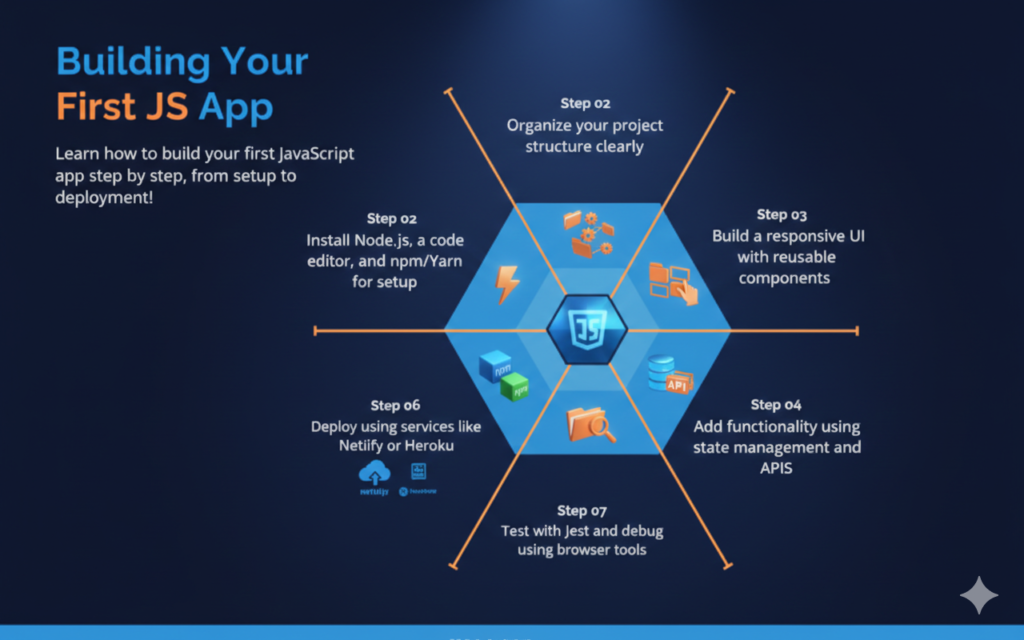
A human-centered design is crucial. Users want a responsive design that feels natural. We will use Tailwind CSS to build a modern, clean UI for our chat app.
Designing the UI Components
Your chat app needs three main things:
- Message History Area: A scrolling container to display the JSON-formatted messages.
- Input Field: Where users type their queries.
- Action Buttons: A button id to send messages and perhaps a button for Image Generation
The Logic Behind the Chat
To make the chat feel real-time, we use event handling. When the user clicks the “Send” button, we capture the textContent from the input field and send it to the AI models.
JavaScript
async function sendMessage() {
const userInput = document.getElementById(‘chat-input’).value;
// Show loading state to improve User Experience
displayMessage(‘User’, userInput);
try {
// Calling the Puter AI Chat API
const response = await puter.ai.chat(userInput);
// Handle the response
displayMessage(‘AI’, response);
} catch (error) {
console.error(“Error calling Puter.ai:”, error);
// Proper Error Handling for a better User Experience
Advanced Features: Model Selection and Tools
Puter.ai doesn’t just give you a generic chatbot. It gives you a suite of AI tools that can be customized for specific use cases.
Choosing the Right Model
In 2026, Claude 3.7 Sonnet and Claude-sonnet are the gold standards for coding and logical reasoning. In your API calls, you can specify the model:
JavaScript
const response = await puter.ai.chat(userInput, { model: ‘claude-3-7-sonnet’ });
If your app requires visual elements, you can switch to DALL-E 3 for Image Generation or use GPT-4o for fast, conversational responses.
Tool Calling and File System Integration
Puter is more than just chat; it’s a Cloud Operating System. This means your AI chatbot can actually do things.
- File Content Analysis: The AI can read files from the user’s Cloud storage.
- Data Persistence: Use the Cloud Key-Value Store to save message history so that when a user refreshes the page, their conversation is still there.
- Image Analysis: Upload an image and ask the AI to describe it using its built-in Image Analysis capabilities
Managing API Keys and Security
Security is a major pain point for many developers. Puter simplifies this by managing the authentication layer for you.
- API Management: You don’t have to manually rotate API keys. Puter’s environment handles the API access securely.
- Usage Limits: You can set rate limiting to ensure that a single user doesn’t consume all your API usage or API credits.
- Environment Variables: For sensitive operations, always use environment variables and never hardcode secrets in your client-side code
Enhancing the User Experience (UX)
To make your app feel human-written and intuitive:
- Markdown Support: Ensure your chat display can render Markdown. If the AI provides code, it should be formatted correctly
- Streaming Responses: Instead of waiting for the full JSON response, use streaming to show the text as it is generated. This makes the AI integration feel real-time
- Responsive Design: Use CSS flexbox or grid to ensure the chat window works perfectly on a 4-inch phone or a 32-inch monitor
Common Use Cases for Puter.ai Chat
1. Customer Support Bot
By connecting the chat to your site’s file content, the AI can answer specific questions about your products using the latest Claude 3.7 Sonnet model.
2. Creative Writing Assistant
Integrating Image Generation (DALL-E 3) alongside the text chat allows users to brainstorm a story and see the characters come to life instantly.
3. Personal Productivity Tool
Link the chat to Puter’s Cloud storage. Users can say, “Summarize my last three spreadsheets,” and the AI will use its tool calling capabilities to read the JSON or CSV data and provide a report
Conclusion
Building an AI chatbot in 2026 shouldn’t be a months-long project. With Puter.ai and JavaScript, the process is reduced to a few dozen lines of frontend code.
By leveraging the User-Pays Model, Unlimited OpenAI API access, and the powerful Puter.js SDK, you are not just building an app; you are building a scalable, intelligent platform
FAQ
What makes Puter.ai different from using the OpenAI or Anthropic API directly?
The primary difference lies in the serverless architecture and the User-Pays Model. With traditional APIs, you must build a backend to hide your API keys and pay for all user interactions yourself. Puter.js allows you to call models like Claude 3.7 Sonnet or GPT-4o directly from the client side (frontend) without any backend setup. Best of all, users can use their own API credits, meaning you pay $0 for infrastructure and AI costs regardless of how many people use your app
Is Puter.ai really free for developers?
Yes! Puter is open-source and free for developers. You can access over 500 AI models (including Unlimited OpenAI API access in certain tiers) without needing to juggle multiple subscriptions. By using the Puter.js SDK, you avoid the typical costs associated with API management and hosting
How do I switch between different AI models like Claude and GPT?
Switching models is as simple as changing a single line in your JavaScript code. In your puter.ai.chat() function, you simply pass the desired model as an option.
- For Claude: { model: ‘claude-3-7-sonnet’ }
- For GPT: { model: ‘gpt-4o’ }
- For fast testing: { model: ‘gpt-4.1-nano’ }
Do I need to worry about API key security in my frontend code?
No. One of Puter’s greatest strengths is that it handles authentication and key management automatically. When a user interacts with your app, Puter manages the secure connection to the AI provider. You don’t have to hardcode sensitive keys into your frontend code, which significantly reduces security risks
Can Puter.ai handle real-time streaming like ChatGPT?
Absolutely. To improve the user experience, you can enable streaming responses. Instead of waiting for the entire JSON response to generate, your app can display text word-by-word as it’s being created. Simply set stream: true in your function options and use a for await…of loop to handle the incoming data chunks
What happens if a user exceeds their usage limits?
Puter is designed with rate limiting to prevent abuse. Under the User-Pays Model, if a user reaches their usage limits, they are prompted to add more API credits to their own Puter account. This ensures your application remains stable and you are never hit with a “surprise” bill for someone else’s heavy usage
Does this work with frameworks like React, Vue, or Angular?
Yes. While you can use a simple script tag for basic HTML projects, Puter is fully compatible with modern workflows. You can use npm install @heyputer/puter.js to integrate it into your React, Vue.js, or Angular applications, just like any other professional library